 Chitra Studio
Storyboard22 October 2026
Storyboards: From Script to Stills to Clips
Plan the shots, make the stills, animate the moments, and assemble the film. Follow Temple Dawn from its script to the finished scene.
To make a short film, we start from a script, plan a list of shots, make a still for each shot and then animate the stills to produce the shot clips and join them to produce the film. Storyboard is the feature of Chitra Studio built for this workflow.
This post follows one board, Temple Dawn, from script to finished film, with the actual prompts and the actual screens.
The film
What the screen looks like
Storyboards have their own tab in the header. Open one and the window splits in two.
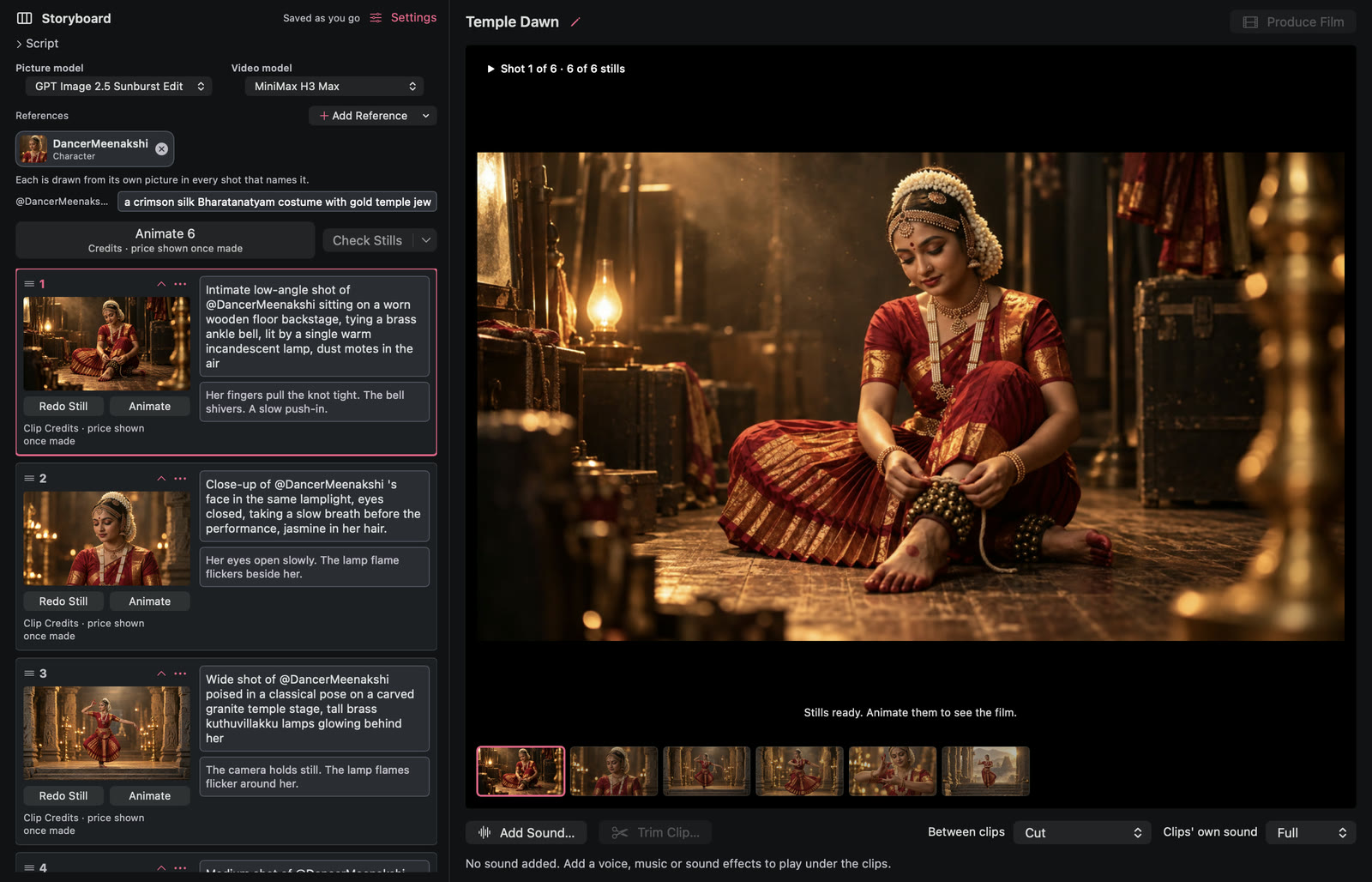
On the left, from the top: the Script, the Picture model and Video model, the References row, the Animate and Check Stills buttons, and then the shots. Each shot is a card with its still, a picture description, a What moves line, and buttons to redo the still or animate it. The right side previews whichever shot you select, and its strip underneath plays the clips in order once they exist. Produce Film at the top joins them into one video.
Start from a story or a script
There are two ways in. Story to Storyboard takes a story, which you write yourself or ask Chitra to write, and plans the shots for you. New Storyboard takes a script you already have; Plan Shots then proposes a shot list, or Write Shots Myself starts you with an empty one.
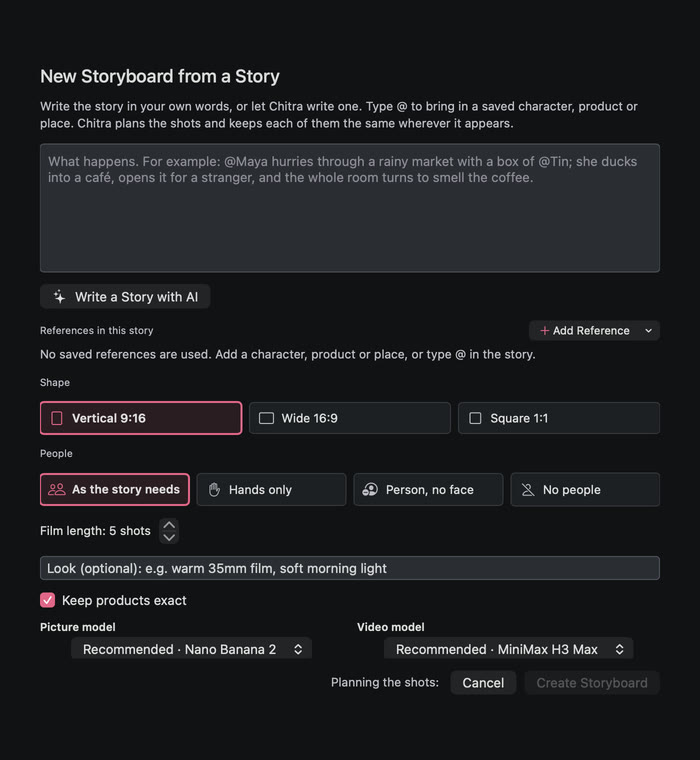
You choose a shape (vertical, wide or square), how many people the film may show, and a film length of three to six shots. The Look field holds a style that every still is drawn with.
Temple Dawn started from this script:
Backstage, a Bharatanatyam dancer @DancerMeenakshi ties the last brass bell around her ankle. She breathes in, rises, and walks out onto a carved granite temple stage lit only by brass oil lamps. She holds a still pose, then breaks into a turn and a series of precise mudras. At dawn the performance is over: she stands on the temple steps in the mist with her hands in a final mudra, and the first light reaches her.
And this look:
Cinematic photograph, 85mm, shallow depth of field, warm golden and deep amber tones, gentle haze, soft bokeh.
Name a character once
@DancerMeenakshi is a saved Character reference: a few pictures of the dancer. Whenever a shot's description says @DancerMeenakshi, those pictures go to the model along with the request. The last shot also names a saved style reference, @GoldenHour. (How saved references work.)
The board's References row lists what the story uses, and the box beside a character sets what she wears. That text is added to every shot she appears in, so the costume doesn't change from shot to shot. Typing @ in a shot offers only the references already on the board.
This helps, but it doesn't guarantee a match. Look at the face, the costume and the jewellery across all six stills before you animate anything.
Six stills
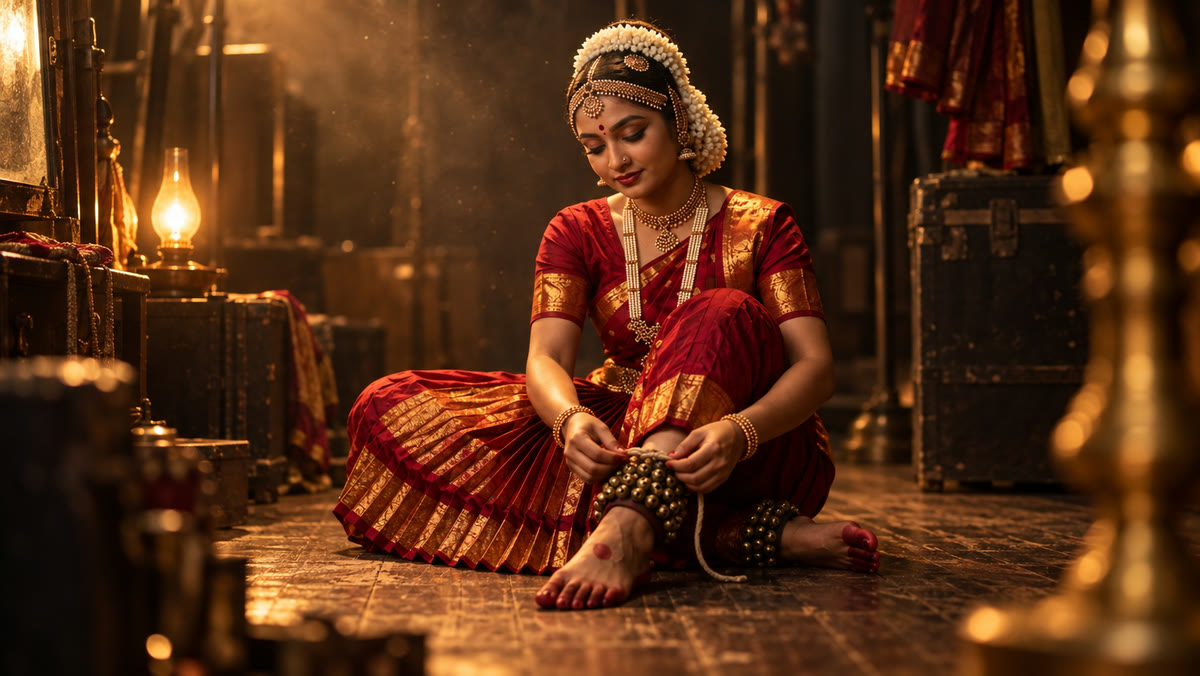
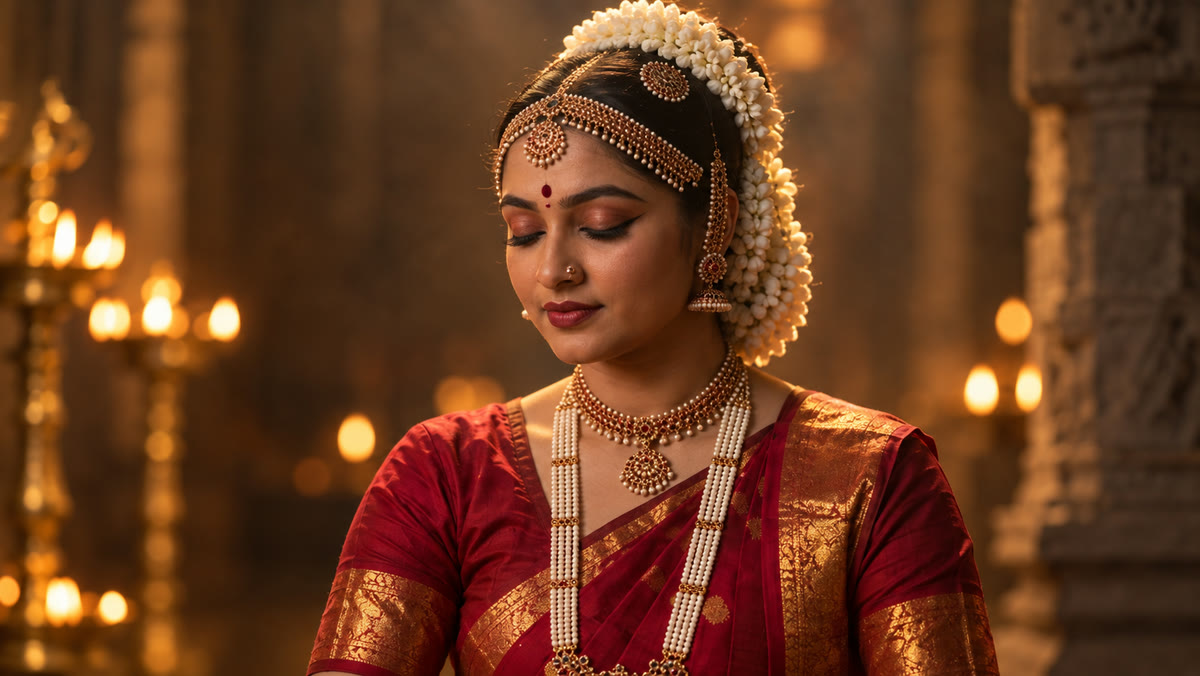
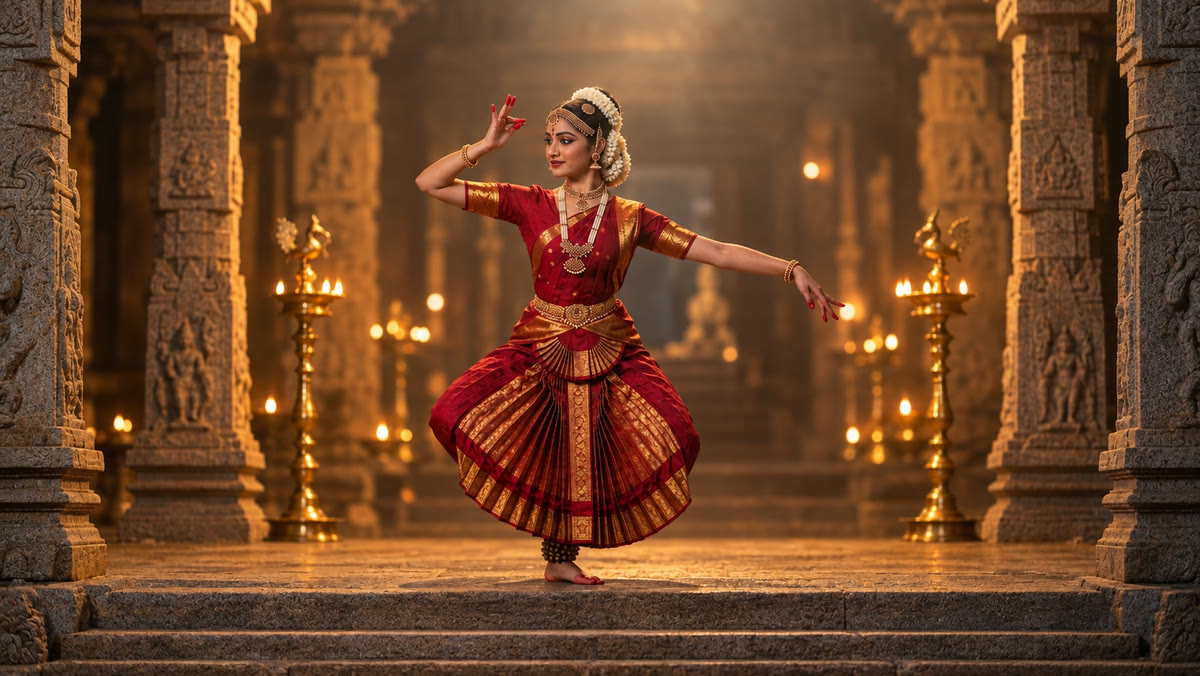
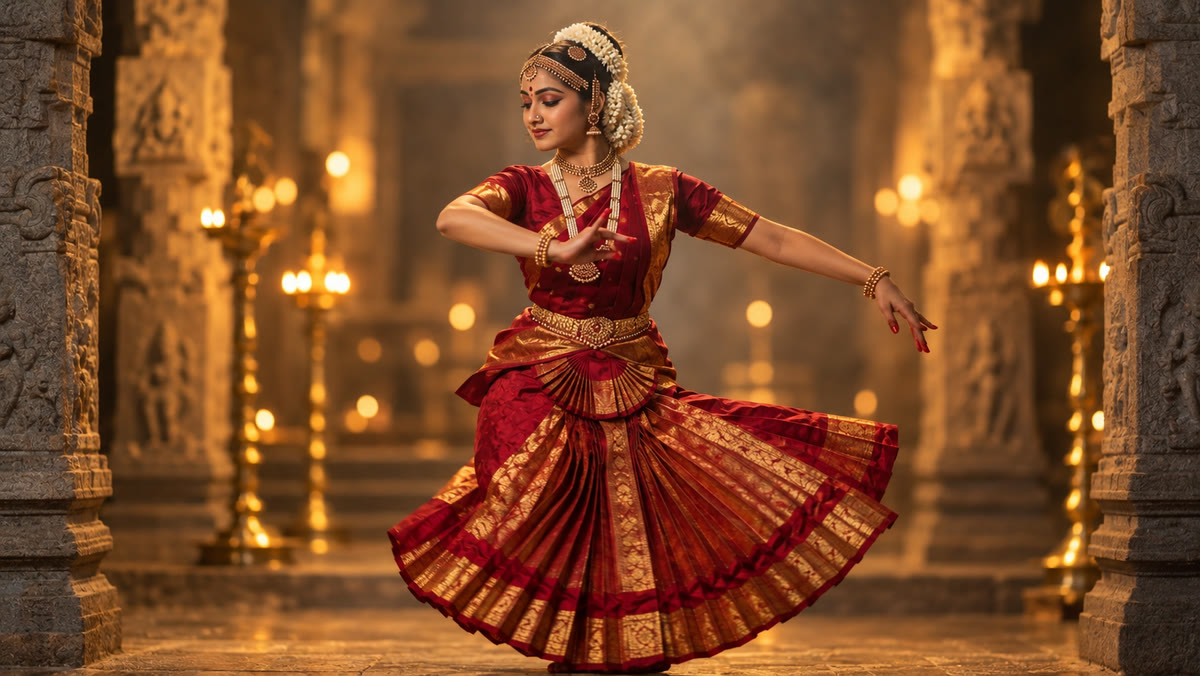
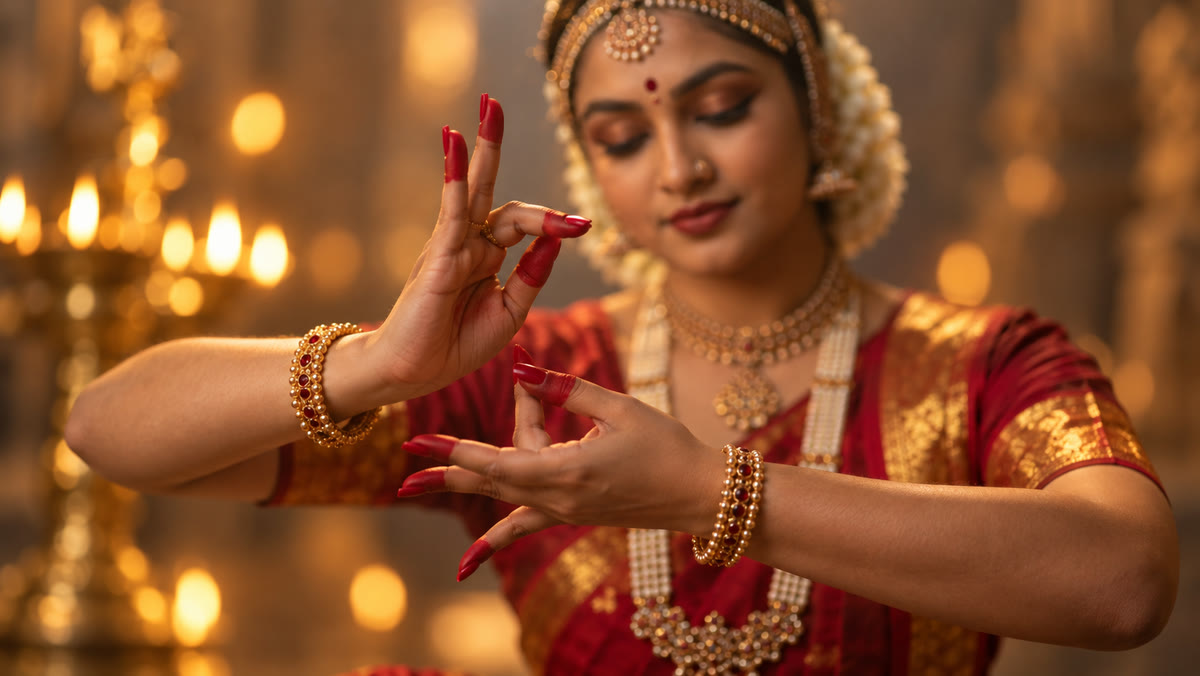
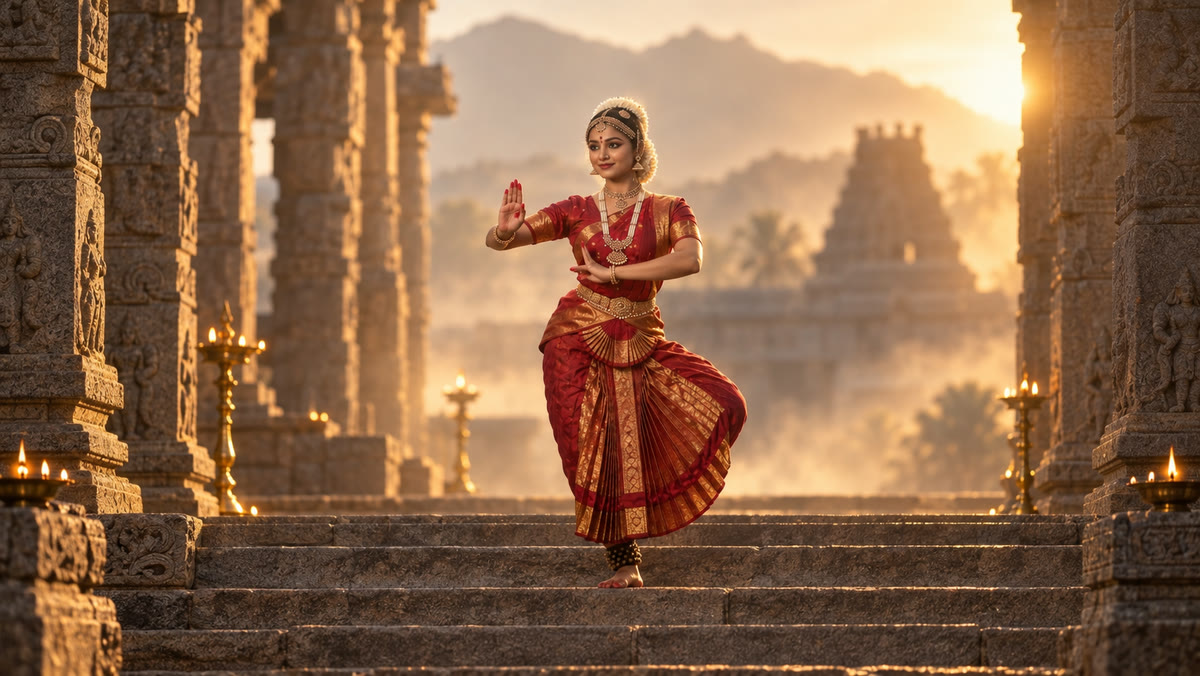
You can make one still or all of them. Doing the first one alone is worth it: if the character or the room is wrong there, it is wrong everywhere. To change a shot, rewrite its description and choose Redo Still, or take a picture you already have with Use Image from Library.
Check the stills before animating
Many failed clips come from a bad still. The dancer's hands are in the wrong place for what the motion asks, or the object she is about to pick up is already in her hand. A clip made from that still has nothing sensible to do.
Check Stills (new in 1.0.5) asks a model to look at each still next to its motion line and the board's rules. Add Rules lets you write the ones you care about, for example that objects keep their real size. A shot that fails is flagged.
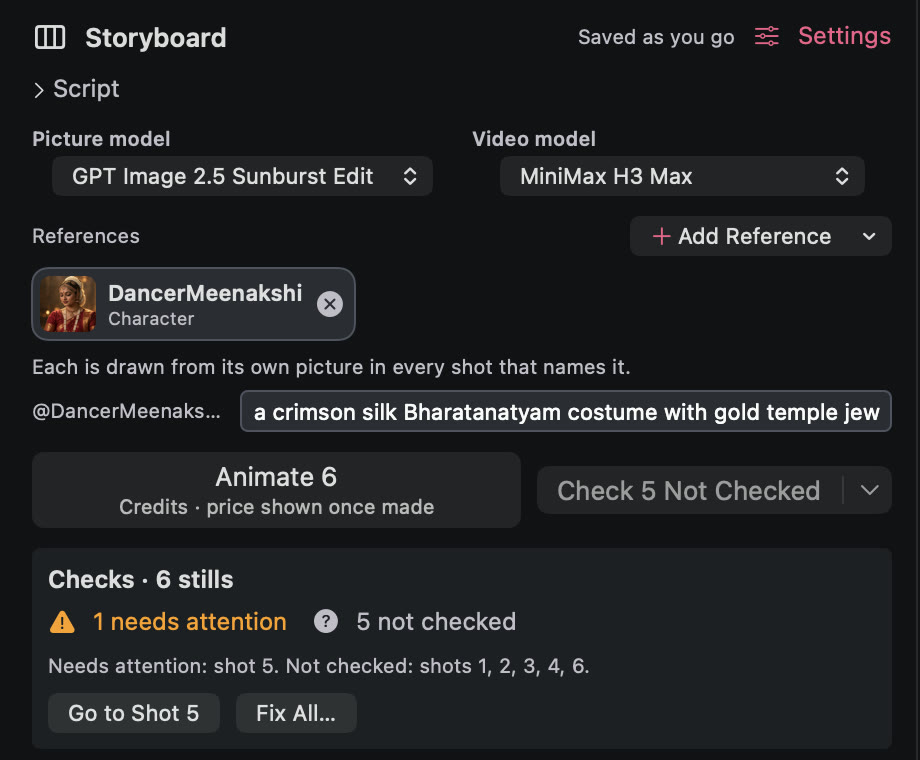
A flagged shot shows what the check found and offers a repair:
- Fix Motion swaps in a motion line that fits the still. It is free.
- Redo with Fix rewrites the picture description and makes a new still.
- Edit to Fix asks an image-editing model to correct the existing still, when the rest of it is right.
- Looks Fine dismisses the flag if you disagree.
Fix All lists every repair with its cost and waits for your confirmation. The check is a second opinion. It misses things, and it sometimes flags a good still, so a repaired still should be looked at too.
Picture first, then motion
Each shot keeps two things apart: what the frame shows, and what happens next. Here are two shots from the board.
1. The ankle bells
Intimate low-angle shot of @DancerMeenakshi sitting on a worn wooden floor backstage, tying a brass ankle bell, lit by a single warm incandescent lamp, dust motes in the airWhat moves
Her fingers pull the knot tight. The bell shivers. A slow push-in.
6. Dawn on the steps
Wide shot of @DancerMeenakshi on ancient stone temple steps at dawn, hands in a final mudra, mist drifting between granite pillars, @GoldenHour rim lightWhat moves
She holds still while the mist drifts. The first sunlight spreads over the steps. A slow pull-back.
In shot 1 the frame sets up a pair of hands and a bell, and the motion is one small action. In shot 6 the dancer doesn't move at all; the mist, the light and the camera do the work. If a clip goes wrong you can change its motion line and animate again without touching the picture.
Press Animate on a shot, or Animate 6 for all of them, and Redo Clip to try a shot again.
Cut it together
Clips join in storyboard order, and you can drag a shot to move it. Trim Clip sets the part of a clip that is used, Between clips chooses a cut or a crossfade, and Add Sound puts a voice, music or effects underneath. Produce Film then makes one video. The joining happens on your Mac and costs no credits; stills, clips and the AI planning and checking each show their price first.
Make your first storyboard
Chitra Studio is a Mac app for making and organising AI images, video and sound with more than 60 models. Every price is shown before you generate.
Download for Mac14-day free trial · 50 free credits · no card