 Chitra Studio
Cost Report17 October 2026
The Cost Report: see what every AI image, clip and sound cost
Every generation's exact cost, added up by project, time window and model, with every charge listed and a CSV to export.
Every AI tool tells you what a plan costs. Very few tell you what your work cost: this client's campaign, last month's experiments, the one video model you keep reaching for.
In Chitra Studio, every generation records exactly what it took, in credits at one cent each. The Cost Report adds it up any way you need: by project, by time window, by model, or one charge at a time. Here it is on a real workspace of nine projects.
Opening the Cost Report
Click Cost Report at the top of the window. Three controls decide what it shows:
- Project: all projects, the Inbox, or any one project.
- Time window: this month, last month, the last 90 days, or all time.
- Summary or Charges: the totals and charts, or every charge listed one by one.
The whole workspace at a glance
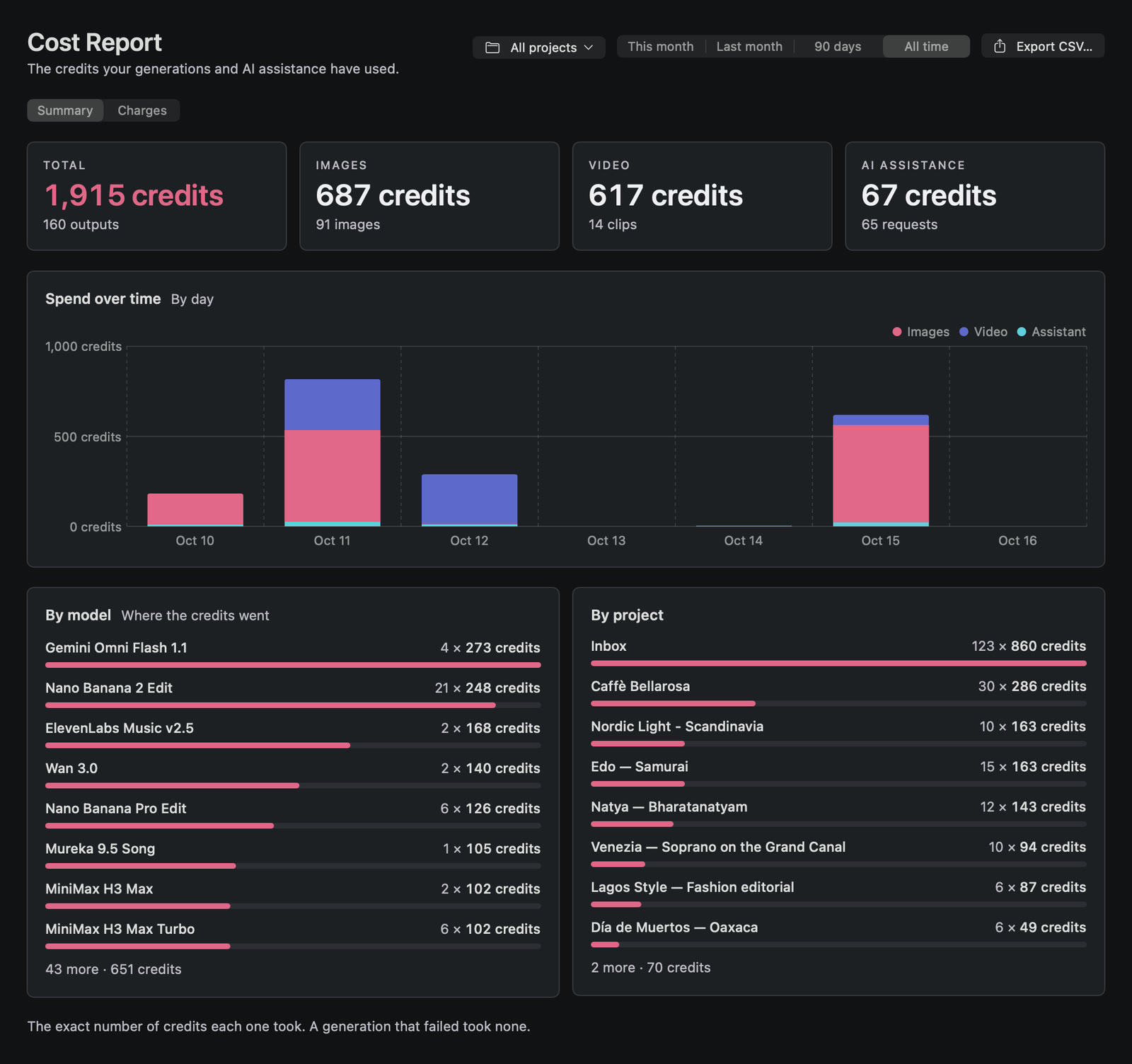
- The totals across the top: 1,915 credits ($19.15) for 160 images, clips and sounds, split into images (687), video (617) and AI assistance (67, for 65 uses of Improve Prompt with AI and Analyze & Fix).
- Spend over time: a bar for each day, or each month over a longer window, coloured by images, video and assistance. You can see the busy days at a glance.
- By model: where the credits went, and how many outputs each model made. Here Gemini Omni Flash leads with 273 credits for only four clips, while Nano Banana 2 Edit reached 248 by being used 21 times.
- By project: each project's share. The Inbox, where I try ideas before they belong anywhere, used 860 of the 1,915.
One project, for one client
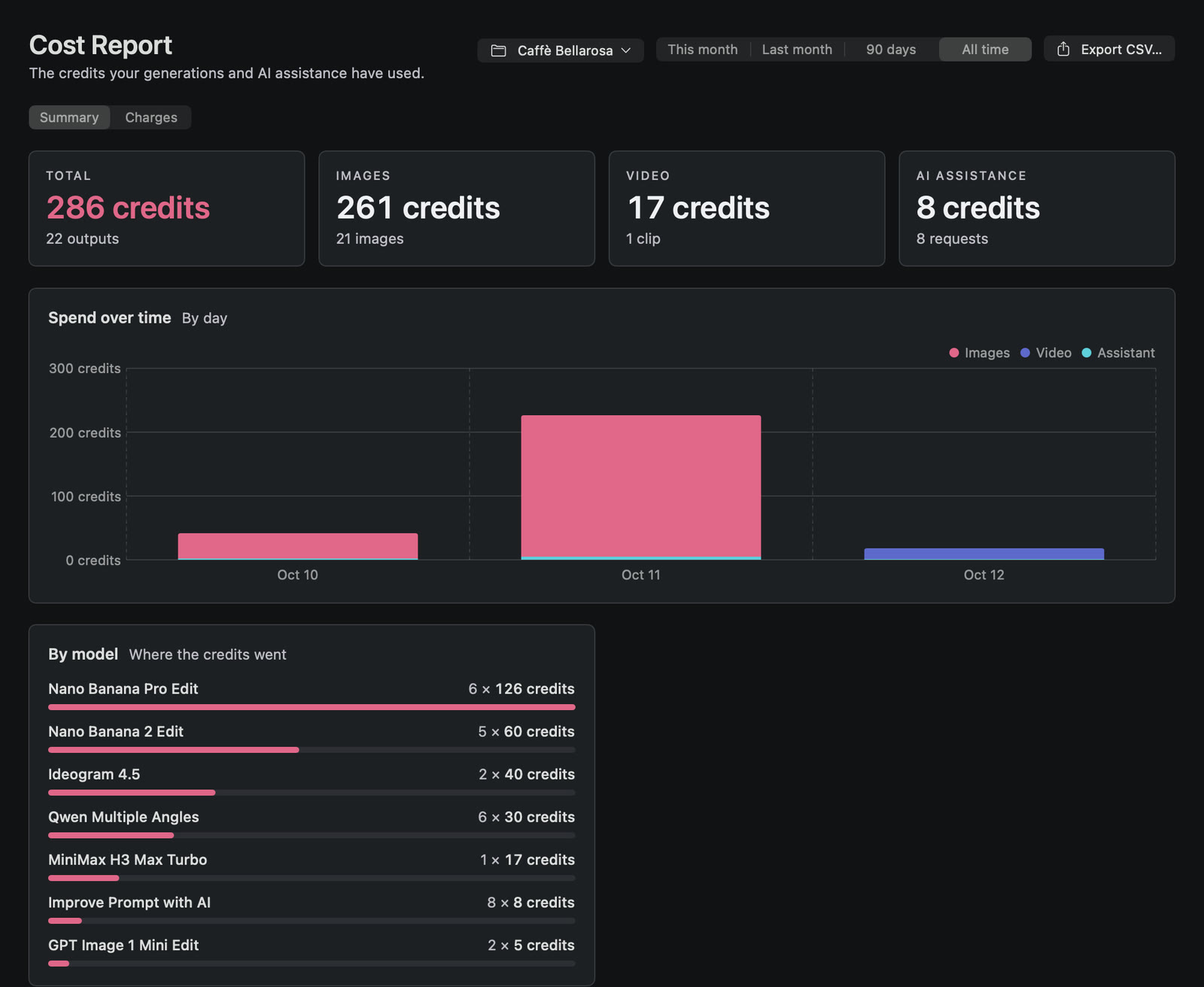
Choose a project and the whole report narrows to it. Caffè Bellarosa is a small branding job: two logos, a product shot of the tin, the tin in three places, six new camera angles and one short clip. All of it came to 286 credits, or $2.86, and the report shows exactly which models it went to.
Give each client or campaign its own project, and this page is your cost of goods for that job.
Any time window
Switch between This month, Last month, 90 days and All time to see what a period cost. Combine it with a project to answer questions like "what did this client's work cost last month?" The chart shows days for short windows and months for long ones.
Every charge, one by one
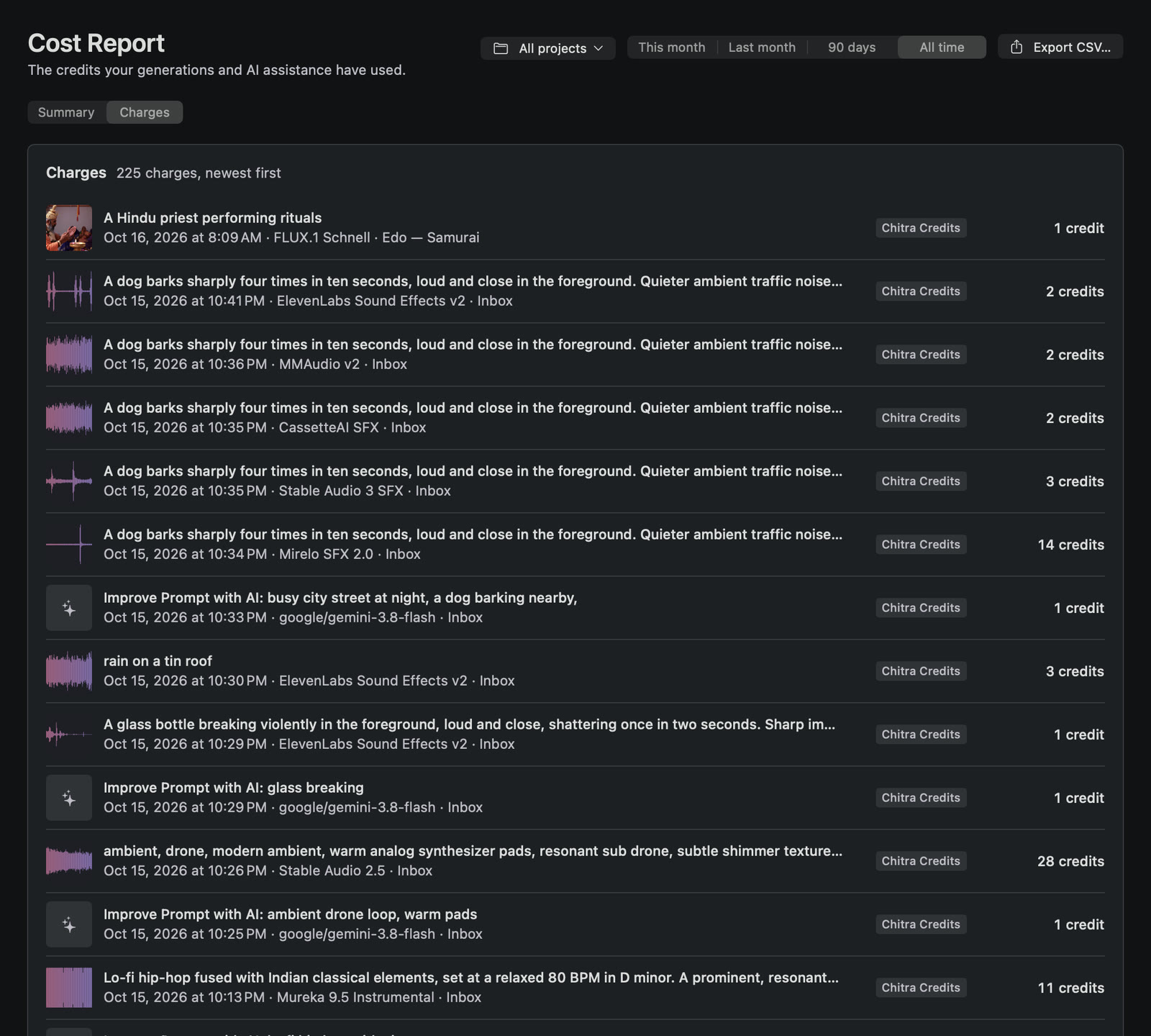
Charges lists every generation in the window: its picture or waveform, the prompt, when it ran, the model, the project and the exact credits. Prompt help is listed too, so nothing is hidden in a total. A generation that failed took nothing, so it costs nothing here.
Export for a spreadsheet or an invoice
Export CSV saves what the report is showing, one row per output: date, project, file, type, model, cost and prompt. Open it in Numbers or Excel, or attach it to an invoice.
Before and after you generate
The Cost Report is the record. The same numbers show up earlier, too: the price of every model is shown before you press Generate, and each item in your library shows what it cost when you select it.
What this workspace taught me
- Video is where the credits go. 14 clips used almost as much as 91 images.
- Small prices add up. A 12-credit edit is cheap once; 21 of them made it the second-biggest line.
- Experiments cost more than projects. The Inbox used 45% of everything. Worth knowing before a client asks what a job really cost.
- Prompt help is almost free. 65 uses came to 67 credits in all.
Know what your own work costs
Chitra Studio is a Mac app for making and organising AI images, video and sound with more than 60 models. Every price is shown before you generate.
Download for Mac14-day free trial · 50 free credits · no card