 Chitra Studio
Library28 October 2026
Search your AI media by meaning, on a Mac
The filename or prompt may not say what the picture actually shows. Chitra Studio has AI Search and Find Similar features that look at what is in the picture and what it was made from when searching your library.
The prompt you typed to make an image may often say something cryptic like "slow camera push in on his face". A new angle reads "low angle from the left". Neither mentions the subject of the image, so a search for it misses both.
The Gallery now has two ways to find them: AI Search and Find Similar.
AI Search
Tick AI Search beside the search field and describe what you remember. Results come closest first, and anything not close is left out.
Each picture or clip is matched on:
- its prompt (or file name) and your notes;
- what the Mac sees in it: people, snow, a fence, a wedding. This is how a picture with no prompt gets found;
- the prompts and notes of the pictures it was made from, so a new angle, an edit, or a clip made from a samurai picture is found by "samurai";
- near-synonyms: "dress" finds a prompt that says "gown".
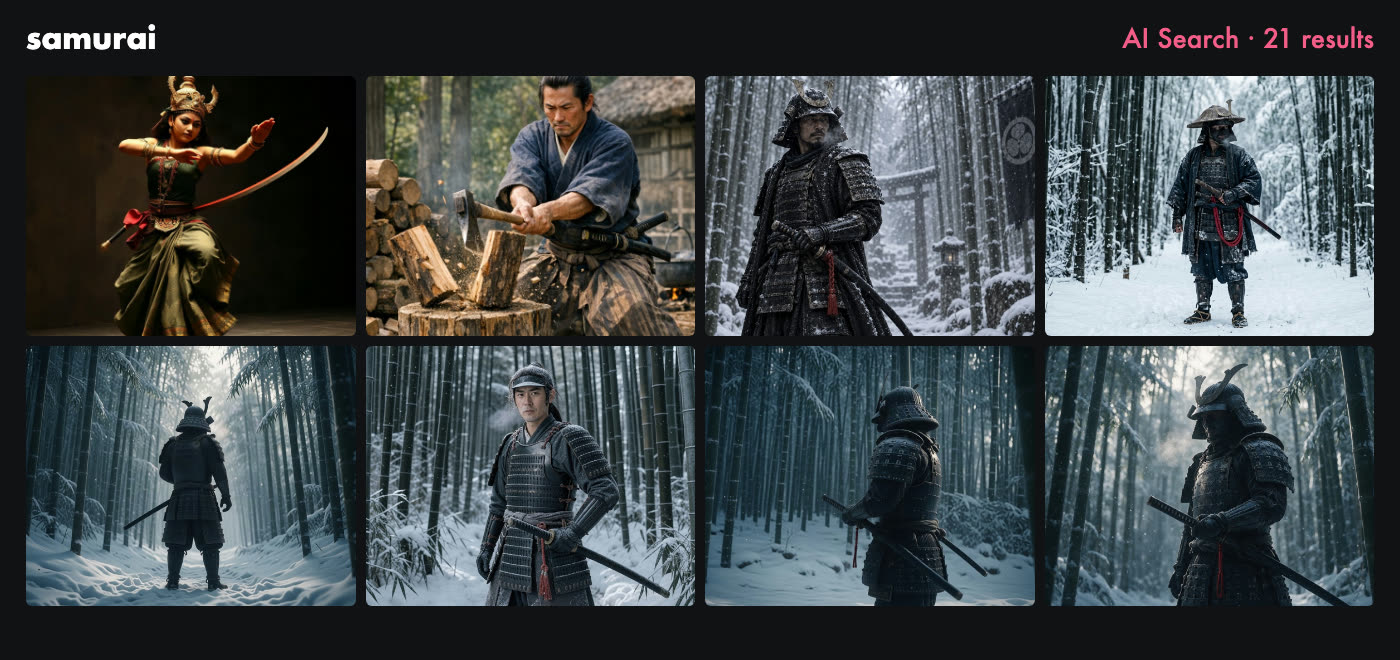
Words you never used still work.
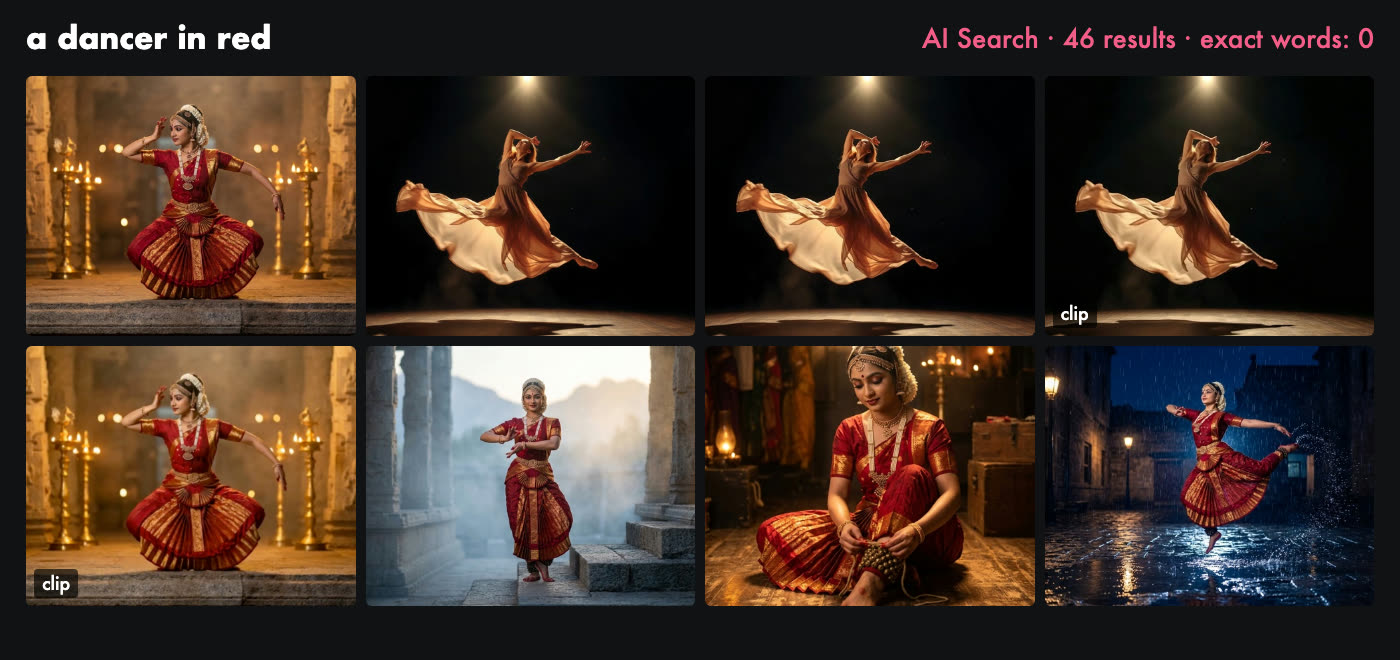
The first answer comes straight from your words. A small spinner beside the checkbox shows while the library is still being looked through and the answer is refined; until then the gallery shows what exact words find.
AI Search ignores project names. Otherwise every item in a project called "Samurai" would answer a search for samurai. To find a project's items, open the project, or untick AI Search.
Find Similar
Right-click a picture or clip and choose Find Similar. The gallery shows what looks most like it, nearest first. A chip with a thumbnail of your starting picture sits on the filter bar; click its cross to go back.
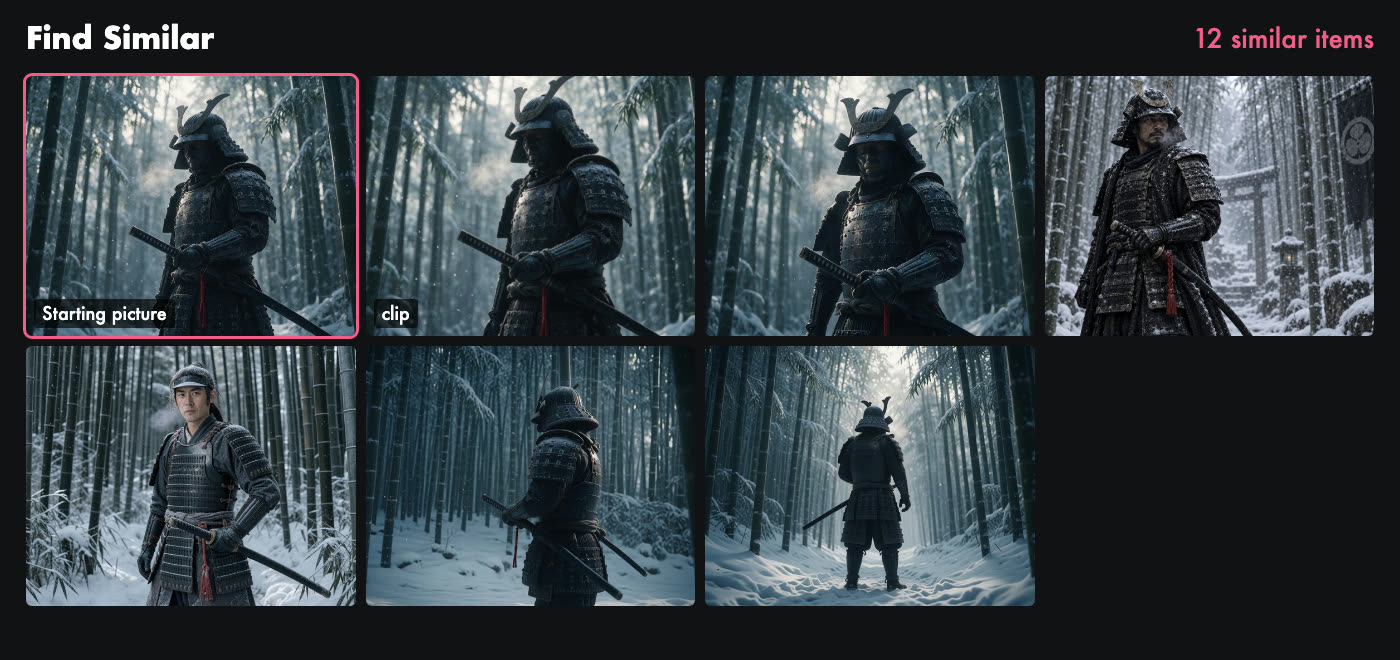
Items that do not look alike are left out, so a red dress does not bring up everything red. The filter bar still applies: videos only, the last 30 days, four stars and up.
What stays on your Mac
The first time you use either, the Mac looks at each picture and clip once, working from the small preview Chitra already keeps, and stores the result in the workspace. New items are looked at as they are made. The looking and comparing happen on your Mac, using what macOS provides; nothing is sent anywhere for them. Making pictures and clips still goes through the model provider, as before.
Music and sound have no picture, so Find Similar skips them. AI Search finds them by their prompts.
Limits
- A new library is looked through on first use. With several hundred items it takes a while; the spinner and an "N of M" count show progress.
- For a file name or a model name, untick AI Search and use exact words.
- What the Mac sees is general: "people", "snow", "wedding". It does not know your character's name unless a prompt or note says it.
- A query far from everything in the library finds nothing, not the nearest poor matches.
Search your library by meaning.
Chitra Studio is a Mac app for making and organising AI images, video and sound with more than 60 models. Every price is shown before you generate.
Download for Mac14-day free trial · 50 free credits · no card