 Chitra Studio
Editing17 October 2026
How to change one part of an AI image without touching the rest
Draw a box, say what changes, keep every other pixel. Comparing Nano Banana 2 Edit and GPT Image 1 Mini.
I had an AI generated image of an opera singer on a gondola, and I wanted her gown green instead of red. Nothing else needed to change.
Image models will make that change if you ask, but they often redraw more than you asked for. In the test below, one model also changed her face, her pose and the water around her. If a client has already approved the picture, or it has to match others in a set, that means starting over.
The fix is to tell the model where to work, and then make sure nothing else can change.
Mark the area, then say what changes
- Open the picture and choose Edit.
- Drag a box around what should change. Each box gets a number.
- Type what should happen in that box, such as "make the gown emerald green". Add more boxes for more changes, each with its own note.
- Choose an edit model and press Edit.
What happens behind the box
The box is not just a hint to the model. Three things happen when you press Edit:
- Chitra cuts out a piece of the picture around your boxes, in a shape the model accepts.
- It draws your boxes on a copy of that piece, in red with their numbers, and adds to your note: change only what is inside the boxes, and do not draw the boxes in the result.
- When the result comes back, it is laid over your original only inside the boxes, with a soft edge that stays within each box.
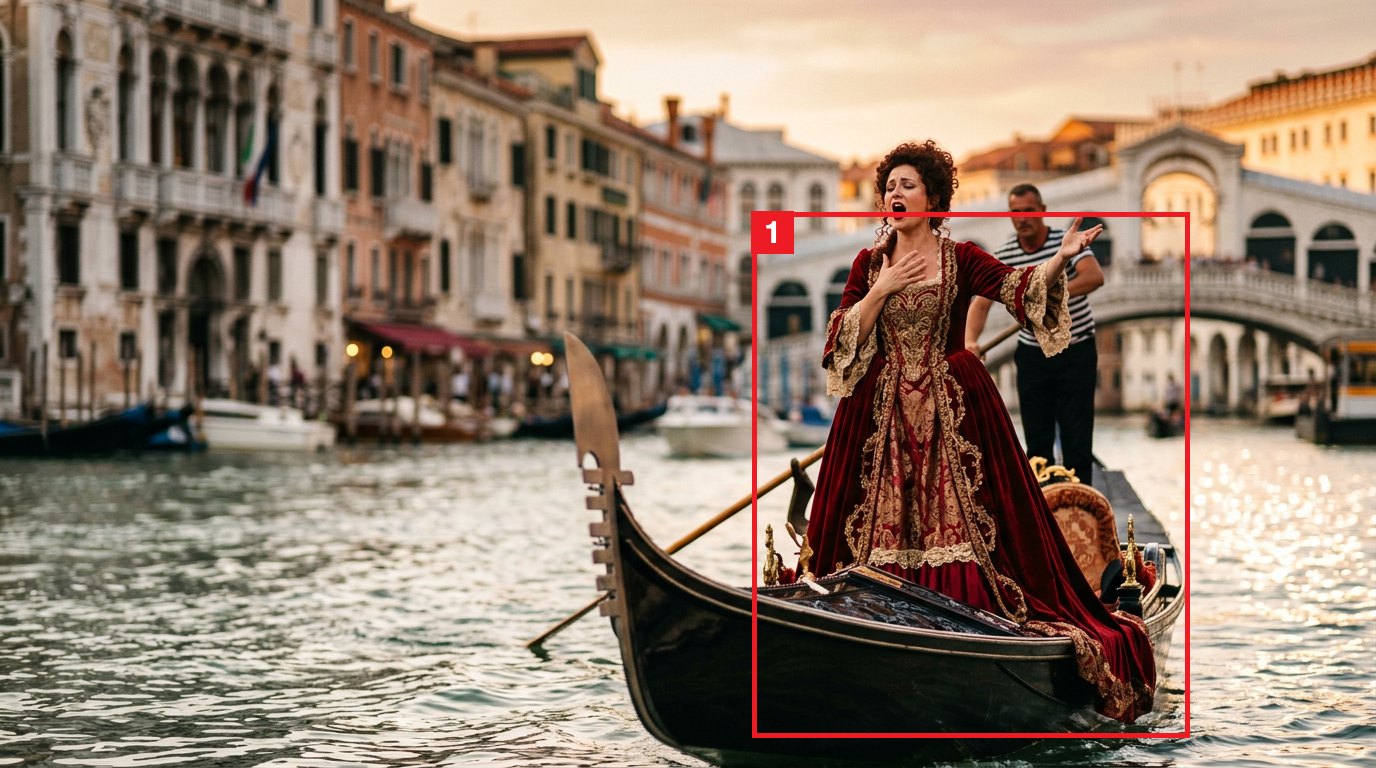
The third step is the one that matters. However the model behaves, nothing outside the box can change, because the rest of the picture is never taken from the model's result at all.
The test: same box, same words, two models
The picture is a Nano Banana 2 image of an opera singer on a gondola on the Grand Canal. I boxed her gown, typed "make the gown emerald green" and ran it on two edit models. In the maps below, everything the model changed is pink.
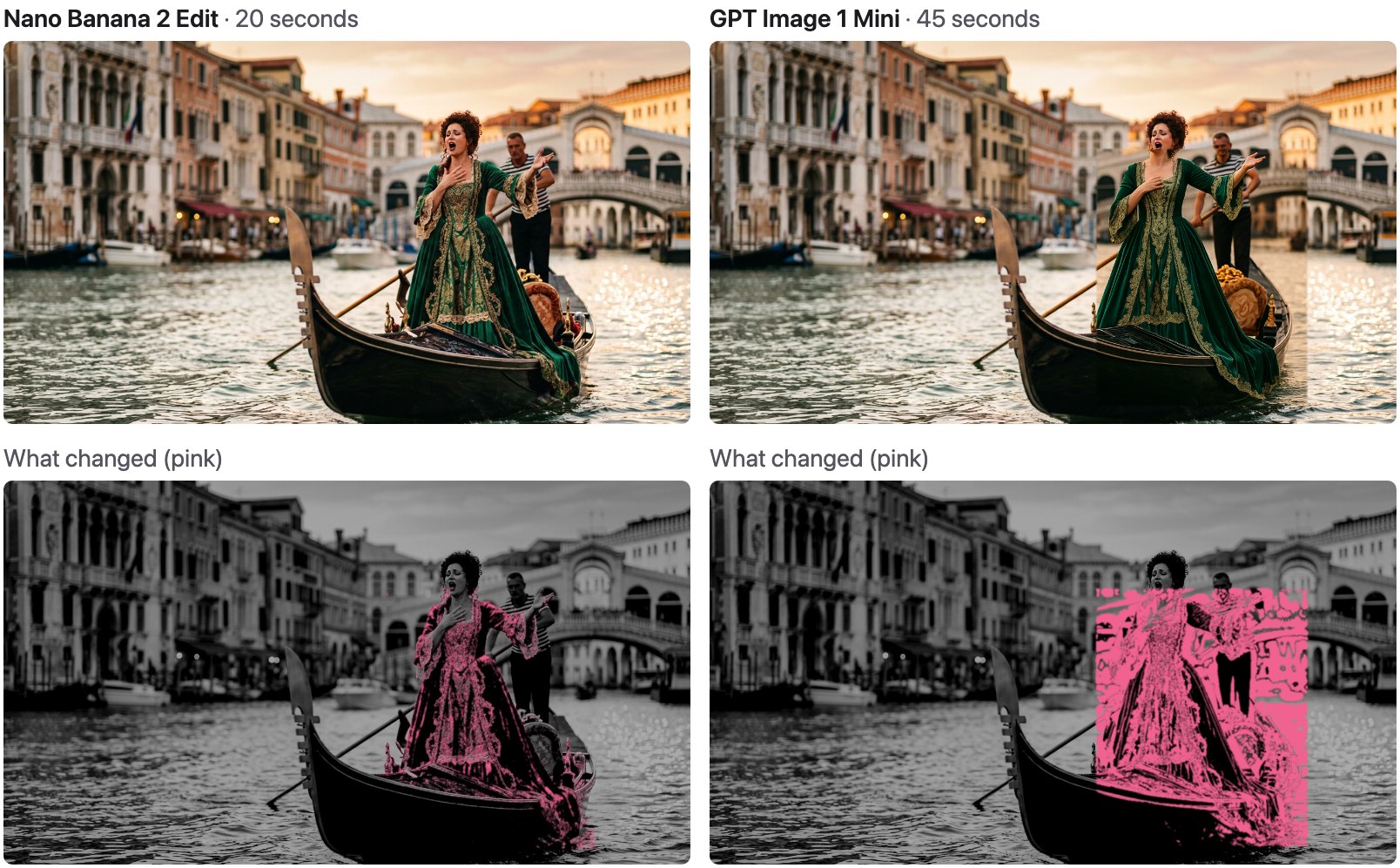
- Outside the box, both results are the original, pixel for pixel. That is the third step at work.
- Inside the box, the models behave very differently. Nano Banana 2 Edit changed the gown and left her face, her hands, the gondolier and the bridge alone. GPT Image 1 Mini repainted almost the whole box: the gondolier, the water and the bridge behind her are all new.
- A model that repaints the box can leave a visible edge. GPT Image 1 Mini's new water does not quite match the water outside the box, so you can see the box's right side in the picture.
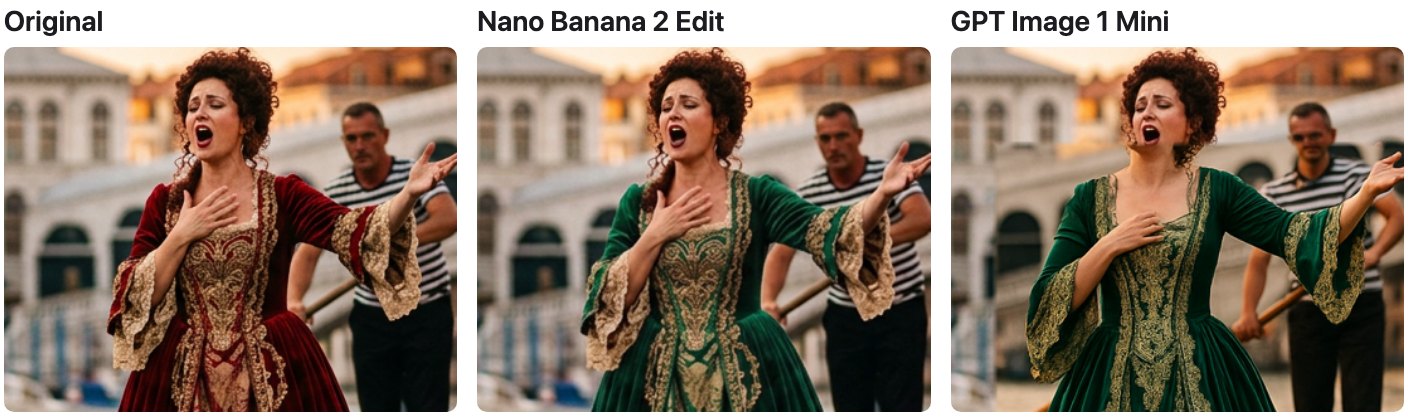
Nano Banana 2 Edit took about 20 seconds and cost 12 credits ($0.12). GPT Image 1 Mini took about 45 seconds. I ran Nano Banana 2 Edit three times with slightly different boxes, and all three changed only the gown.
Tips for clean edits
- Box the thing, not the area. Draw the box around the gown with a little margin, not around half the picture. The smaller the box, the less a model can repaint.
- One change per box. For a green gown and a gold ring, draw two boxes, each with its own note.
- If an edge shows, tighten the box or change model. Models that edit in place, like Nano Banana 2 Edit, blend in. Models that repaint the box show their edges more.
- Compare before you commit. Run the same box on two models and put the results side by side on a contact sheet.
Try it on your own pictures
Chitra Studio is a Mac app for making and organising AI images, video and sound with more than 60 models. Marking areas to edit is built in, alongside Animate, Add Sound, voices and music.
Download for Mac14-day free trial · 50 free credits · no card